# Deploying Apps to GitHub using TortoiseGIT
> TortoiseGit is a Git code control client, which is based on TortoiseSVN. It is an open source software under GNU license
By Shodipo Ayomide, published Mar 2, 2018. Web version: https://blog.shodipoayomide.com/deploying-apps-to-github-using-tortoise-git

TortoiseGit is a Git code control client, which is based on TortoiseSVN. It is an open source software under GNU license
- https://github.com/TortoiseGit/TortoiseGit
## Benefits of using Tortoisegit
- Tortoisegit makes it easier to clone a repository
- Tortoisegit makes it easier to upload your code from your laptop to your repository online easily with a single command line.
- Extremely easy to pull from your online repository to update your local if you are working on a collaboration project with the click of a button.
- This tool makes it easy to remove all un-tracked files from your local with the click of a button.
- And a lot more that can be found on the link below:
## How To connect TortoiseGit with Github
- Go to [github.com](http://github.com) and login
- Create a new Repository.
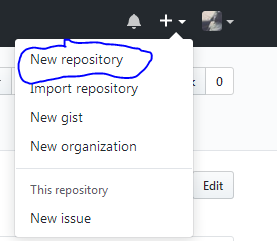
- Create a remote Github repo and name it.
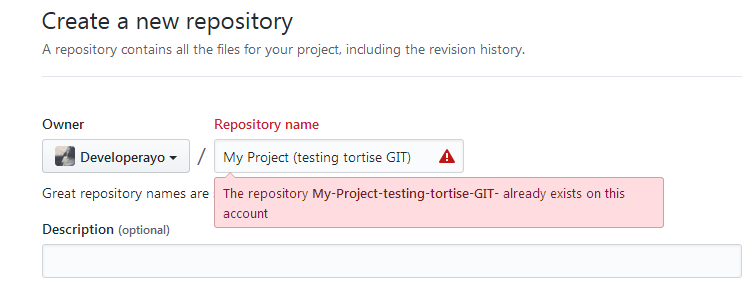
*Mine has already been created so i will work with that, Just put in the namethat’s all. Then click OK.*
- Copy the line containing your project link : https://github.com/Developerayo/My-Project-testing-tortiseGIT-.git
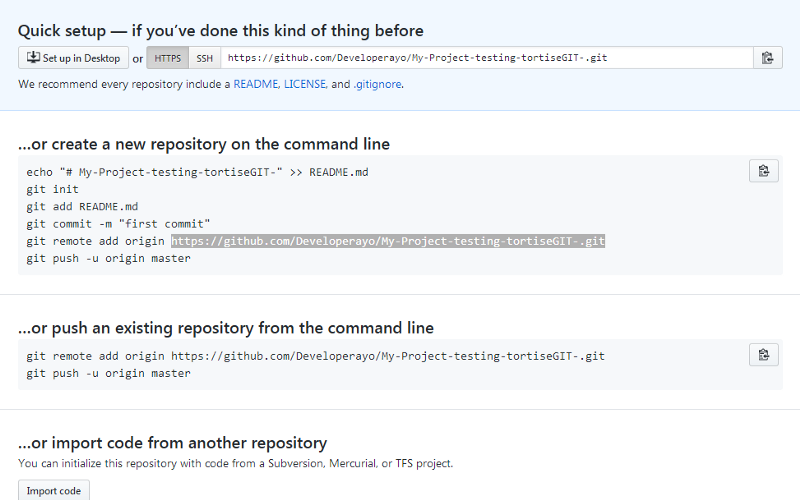
- Now lets head over to the TortoiseGit we installed earlier.
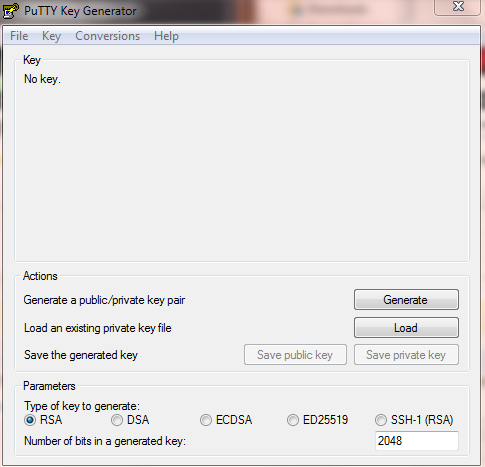
- Once you have got that all opened, click on generate then move the mouse all around the box to make it go faster
- After clicking on generate, you will have a box like this below
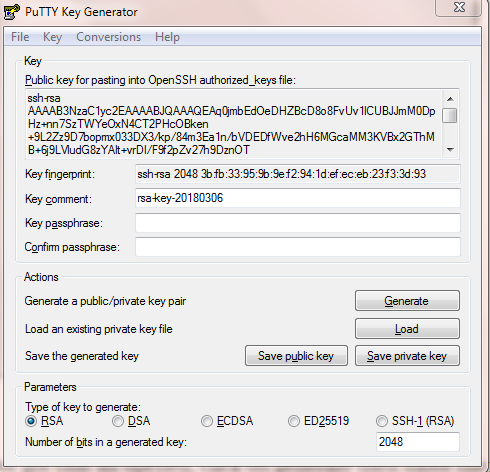
### The looks something like this below
```ssh-rsa AAAAB3NzaC1yc2EAAAABJQAAAQEAq0jmbEdOeDHZBcD8o8FvUv1lCUBJJmM0DpHz+nn7SzT4CT2PHcOBken+9L2Zz9D7bopmx033DX3/
kp/84m3Ea1n/bVDEDfWve2hH6MGcaMM3KVBhMB+6j9LVludG8zYAIt+vrDI/F9f2pZv27h9DznOT+
0PJg4cpOkRSFJTgI3tY4cNTWr5kTZdBONEMI+QGNtpWwr774S
```
- Once you have this, save it in a secure file.
- Do not forget you copied the link from GITHUB that has your project repository link, now lets put that in use:
https://github.com/Developerayo/My-Project-testing-tortiseGIT-.git
- Create a folder on desktop and name it. Mine is named Code, then create a file in the folder, Mine is named myproject. Create a text file named hi.txt and put some text in it.
- lets move on to putting the github link to use
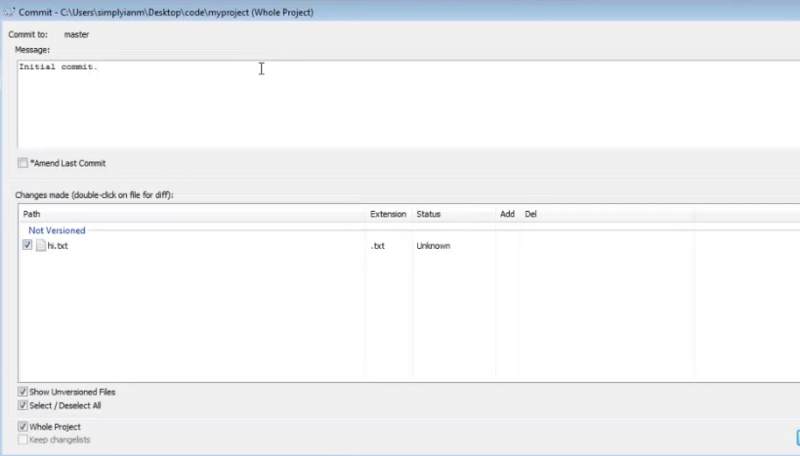
*Now you see the hi.txt file we created, in the message box put in initialcommit then click ok*
{" "}
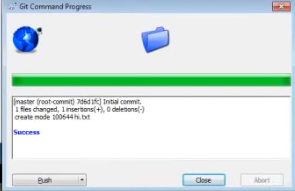
- Now lets go back to that created Repo on GITHUB
- Remember the link you copied from github
https://github.com/Developerayo/My-Project-testing-tortiseGIT-.git
- let us make use of that.
- Right click on the folder you created mine is named ‘myproject’, then click on tortoisegit, followed by the push selection at the top of the list.
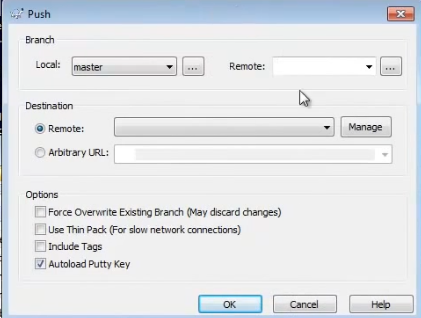
### How to setup the PUSH dialog with Github
- Click on the manage button it would pop up another dialog box like that below
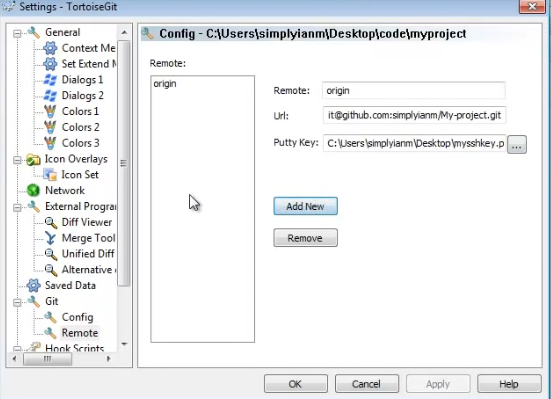
*Fill in the dialog*
- Remote: Origin
- URL: your github url you copied earlier mine is https://github.com/Developerayo/My-Project-testing-tortiseGIT-.git\
- The the ssh or putty key you saved earlier, you would have to add that file here from were you saved it
- Click add new
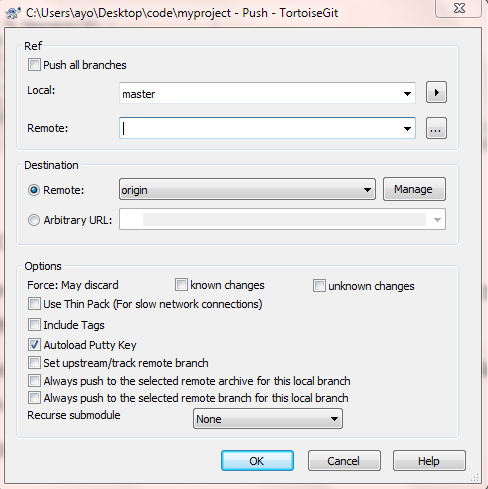
*Just click ok*
- It the starts pushing it to your already created GitHub Repo
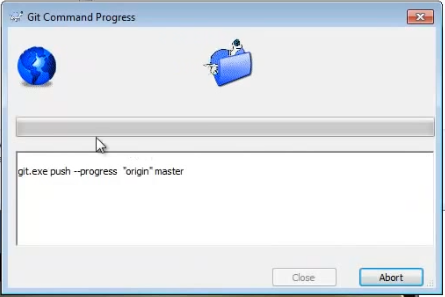
*You would have to wait a few seconds 'Go grab a coffee' *
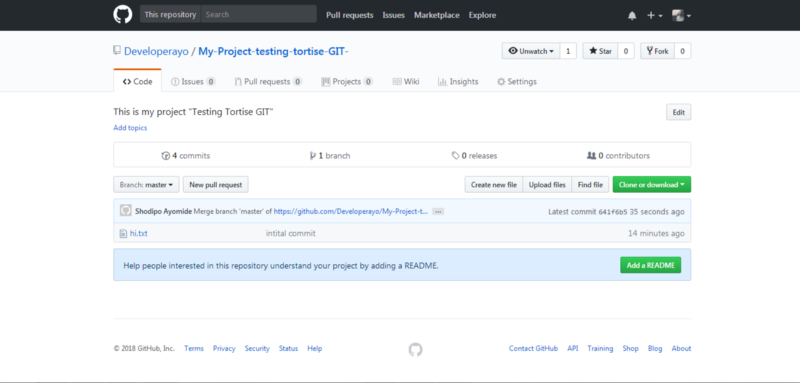
- Lastly visit your repo on GitHub
---
Hurray 🎉🎉 you just deployed your first file to GitHub using TortoiseGIT
Thanks for reading! 🔥🚀